Hello folks!

I built a free, open source utility called WinSlide that makes switching Windows virtual desktops far easier and maybe a little too easy.
On Windows, your options for switching desktops are pretty clunky -
- Click the Task View button in taskbar or Win + tab and manually select a desktop, or
- Use the awkward Win + Ctrl + Left/Right Arrow shortcut.
The keyboard shortcut works, but if you switch desktops frequently, it gets tiring and usually requires both hands.
What WinSlide Does
WinSlide runs headlessly in the background and lets you switch virtual desktops simply by scrolling your mouse wheel at the bottom edge of the screen.
To change the settings, just double click its tray icon to open the GUI.
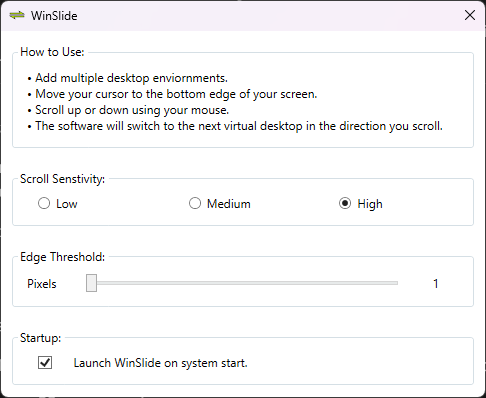
Settings
You can customize two main parameters:
-
Edge Threshold - How close to the bottom edge your cursor needs to be for the scroll action to trigger a desktop switch.
- Default is 1px, meaning it only activates when your cursor is right at the edge.
-
Scroll Sensitivity - How many scroll-wheel steps trigger a switch.
- High: 1 scroll notch
- Medium: 2 notches
- Low: 3 notches (best if your mouse wheel is very sensitive)
-
Auto launch on startup.
I have noticed that on some Windows 11 systems, startup applications take a long time to launch. This behavior is intentional, Windows adds a delay to prevent the system from being overwhelmed during boot. Because of this, WinSlide (like any other startup app) may take longer than expected to start automatically.
If you prefer your startup apps to launch immediately, I recommend applying the registry tweak described here.
Create a new file and paste the following text into it:
Windows Registry Editor Version 5.00

[HKEY_CURRENT_USER\Software\Microsoft\Windows\CurrentVersion\Explorer\Serialize]
"StartupDelayInMSec"=dword:00000000
"WaitForIdleState"=dword:00000000
Save the file with a .reg extension, then run it. This will add the necessary registry keys automatically. After applying the tweak, startup apps should launch immediately.
Installation
WinSlide is fully standalone, it’s built with the .NET runtime included, so there’s nothing to install.
Just extract the ZIP and run the app.
On first launch, you may see a Windows SmartScreen prompt.
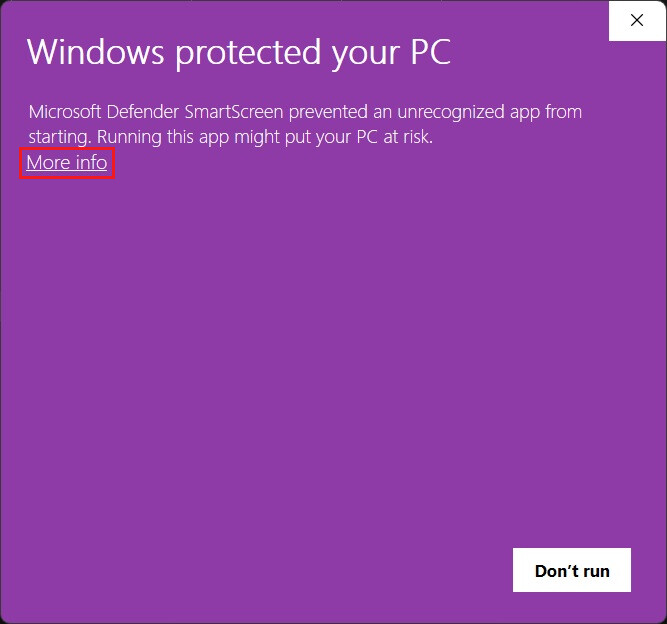
Click More info → Run anyway.
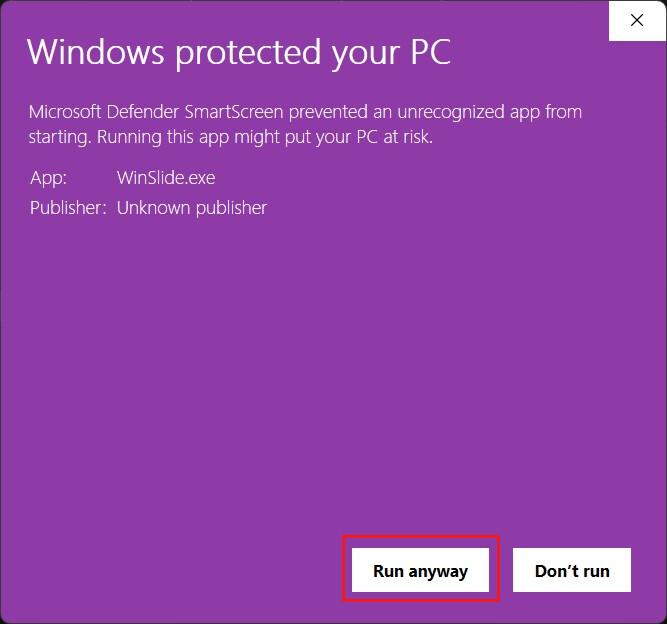
This happens because I am not using a code signing certificate. I would rather not spend 10k/year just to sign an open source tool.
To uninstall, simply delete the folder.
Who Is This For?
If you are using multiple monitors, you might not feel the need for this.
But on a single monitor setup WinSlide can be a huge improvement to your workflow.
My personal recommendation is to create three virtual desktops, use the middle one as your main workspace, and slide to the others just like you slid into that girl’s DMs back in 2012.  Just kidding.
A small note for my own sanity
WinSlide is completely open source, so you are more than welcome to browse, inspect, or modify the code to your heart’s content before running it. Since this is a free hobby project, I can’t take responsibility for any issues or damages that might occur directly or indirectly while using the tool. Please use it at your own discretion, and feel free to explore the code if you want peace of mind.
Basically stating what the MIT license says.
Enjoy !!!
Download - Releases · HeisenCodes/WinSlide · GitHub