Windows 11 massively upgrades its Bluetooth audio capabilities in a new update

Windows 11 massively upgrades its Bluetooth audio capabilities in a new update

Bluetooth LE Audio is now properly supported on Windows 11, with ‘super wideband stereo’ streaming available for audio and chat in the OS.
Windows 11 now supports Bluetooth LE Audio with super wideband stereo streaming, enabling improved low-latency, crystal-clear audio and chat for media, gaming, and calls. This update enhances Bluetooth headset performance, allowing seamless stereo sound and high-quality voice on PCs and next-gen Xbox handhelds with the latest 24H2 update.

Modern Bluetooth audio devices have been using the newer Bluetooth LE Audio standard for audio and chat after its introduction with Bluetooth 5.2. In a nutshell, it enables the broadcast and synchronization of multiple audio streams, with the LE standing for ‘Low Energy’ due to its use of the improved low-power Low Complexity Communications Codec (LC3).

In practice, this means that Bluetooth LE-capable headsets and earbuds can now handle proper stereo streaming with improved voice and chat quality. The technology, until now, hasn’t been fully supported in Windows 11 with the older “Bluetooth Classic Audio” codec and technology, resulting in mono and muffled sound when attempting to pair audio with Bluetooth LE chat capabilities.

Outside of the lower latency that wireless 2.4 GHz audio provides, the fact that you can get full audio and chat is one of the reasons why Bluetooth headsets aren’t really used for much on a Windows 11 PC outside of dialing into a Zoom call. That all changes, as Windows 11 now offers ‘super wideband stereo’ Bluetooth LE Audio streaming.

This update enables a single profile in the Operating System for audio (media, system, or game audio) and voice, with the latter now supporting an enhanced 32kHz sample rate for crystal-clear chat. It even means it’s possible to game with Bluetooth audio without compromises, making this a fantastic and welcome addition for Microsoft’s next-generation Xbox gaming handhelds, such as the ROG Xbox Ally X.

“When using an LE Audio device with a Windows 11 PC that supports super wideband stereo, the switch into game chat no longer causes an abrupt drop in audio quality,” Microsoft writes in the announcement. “The game audio will now stay in stereo and stream at super wideband quality, which is a significant improvement over Bluetooth Classic.”

Microsoft also notes that its work to integrate Bluetooth LE Audio into Windows 11 will improve, with “CD-quality audio playback” being the goal for in-game audio and chat over Bluetooth. On the productivity side, Microsoft Teams’ Spatial Audio capabilities will now function properly, thanks to the addition of proper stereo audio.

To get access to Bluetooth’s big update on Windows 11, you’ll need the latest Windows 11 version 24H2 updates and an updated Bluetooth audio driver for your PC.

Source: https://www.tweaktown.com/news/107459/windows-11-massively-upgrades-its-bluetooth-audio-capabilities-in-a-new-update/index.html

7 Likes

A much needed improvement.

Wondering whether my Sony WF-1000XM5 will work with laptop now. Last time I checked, it did not properly work.

:thinking: Wonder where you can hold of updated driver
I’ve successfully enabled Bluetooth LE Audio on Windows 11. Here’s how:

For the longest time, I tried unsuccessfully to enable the new and much-improved Bluetooth Low Energy Audio stack on my Dell machine. Both the hardware and drivers were supposed to support it, but no matter what I tried, I couldn’t get it to work. Until now!

Background

Bluetooth LE Audio is the next evolution in Bluetooth audio technology, offering several advantages over Bluetooth Classic Audio. The key improvement is the use of the new LC3 codec, which provides higher audio quality at lower bit rates, improving battery life and audio clarity, especially for calls and headset use.

To get Bluetooth LE Audio working on Windows, both the Bluetooth module, its driver, and the audio driver must support it.

The listings on launchstudio.bluetooth.com (which have since been hidden behind a login) and Intel states that the following wireless cards should support LE Audio:

  • Wi-Fi 6 AX210, AX211, and AX411 and their Killer variants
  • Wi-Fi 7 BE200 and BE202
  • and probably all newer chips with Bluetooth 5.3+

Most modern Realtek audio chips and drivers should also support LE Audio, although I couldn’t find any official documentation to confirm this.

If your hardware supports it, simply installing the latest compatible Intel Bluetooth and Realtek Audio drivers should, in theory, enable LE Audio support on your machine. You’ll know it’s working if you see the option to “Use LE Audio when available” in Settings > Bluetooth & devices > Devices (see the last screenshot). I’ve found that most modern Laptops have the required hardware, however, this option never appeared on my machine.

After further research, I discovered that the “Intel Smart Sound Technology for Bluetooth LE Audio” Offload Engine Driver is responsible for offloading Bluetooth LE Audio processing from the Bluetooth module to the sound chip, which is necessary for LE Audio support on Intel hardware on Windows. This driver should be listed under “Sound, video, and game controllers” in Device Manager. However, on my machine, I only saw a driver called “Intel Smart Sound Technology for Bluetooth Audio” (without the “LE”).

Procedure

It turns out you can simply add the Intel SST for LE Audio device/driver by hand:

  1. Install the latest Intel Bluetooth and Realtek audio drivers for your device.
  2. In the Device Manager, select the “Sound, video and game controllers” section.
  3. Select “Action > Add legacy hardware” from the menu bar.
  4. Press Next, and then choose the “Install hardware that I manually select from a list” option. Press Next twice.
  5. Select the “Sound, video and game controllers” option, and press Next.
  6. In the list, look for a model named “Intel® Smart Sound Technology for Bluetooth LE Audio.” For me, this was under “Intel® Corporation,” while all other models were under “Intel(R) Corporation,” but your experience may vary.
  7. Select the model and click “Next.”
  8. The wizard should report success, and after closing it, the “Intel® Smart Sound Technology for Bluetooth LE Audio” device should be displayed and enabled.
  9. Restart your machine (this is also crucial).
  10. Go to Windows Settings > Bluetooth and Devices > Devices, and scroll down to the “Device Settings” section.

Voilà! The “Use LE Audio when available” option should now be visible and enabled.

Source: https://www.reddit.com/r/windows/s/McSq2SAYDI

1 Like

A ditto copy from https://www.reddit.com/r/windows/comments/1f71gr6/ive_successfully_enabled_bluetooth_le_audio_on/

He has given the source below :smirking_face:

I have AX200 based chip, so maybe it won’t support.

I wonder how I would test this? coz I have the intel chip on my Tomahawk Z790

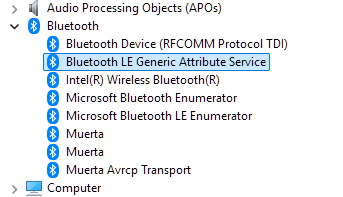
(Muerta is my phone name which is paired)

If you have the LE audio option, then it works, otherwise it doesn’t.

Can i get it on windows 10 too

Doesn’t seem like it but Maybe someone will port it to windows 10.

1 Like

Someone will for sure

1 Like

Extending Bluetooth® LE Audio on Windows 11 with shared audio (preview): Extending Bluetooth® LE Audio on Windows 11 with shared audio (preview) | Windows Insider Blog
Shared audio lets students share music with a friend while studying or brings family members closer by watching a movie together on an airplane.

LDAC when? :disappointed_face:

I just signed up to say that although this gets the drivers installed, actually connecting any LE Audio device causes the SST device to fail to start.

Unfortunately, I’ve yet to get any kind of an answer out of anyone as to what hardware is required to get LE Audio to work on Windows. I have a BE200 card, Ultra9 CPU, integrated in to a Lenovo Legion and no LE audio. Lenovo say it’s Intel not supporting it. Intel say it’s Windows 11 not supporting it, Microsoft say it’s Intel and Lenovo not supporting it.

I have yet to see a single person post a comment anywhere about successfully connecting LE audio devices to an x86 Windows PC and having them play audio.

1 Like

Am able to connect my Sony WF-1000XM5 with Win11 laptop, but sound quality is very bad with lags, disrupting after 1.5-2ftft distance.
HP ZBook, AMD Ryzen 7 7840HS, Realtech network card.

Win11 do this win 11 do that.. what more a guy want from pc, im perfectly fine with wire headphone and windows 10

I don’t trust Microsoft; their incompetence has made me avoid Bluetooth altogether. I’m happy with my wired headphones no need to deal with connection drops and audio lag.

1 Like