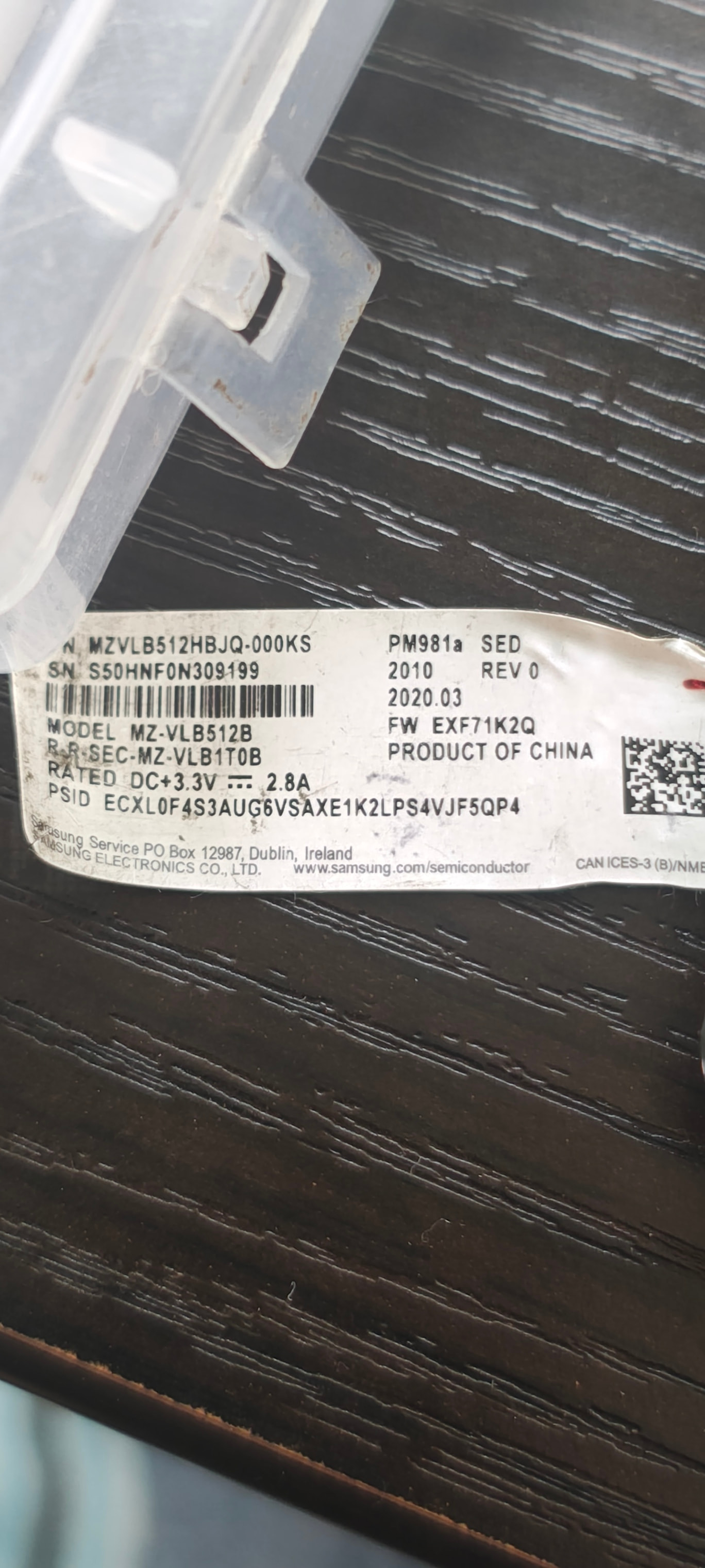
This log indicates a fatal hardware-level communication failure between your disk and the host system
What the Log Means
Status0xC004(Data Transfer Error): This is a generic NVMe status code meaning the controller was unable to move data to or from the flash memory.
DNR (Do Not Retry): The “Do Not Retry” bit is set to 1. This means the SSD’s controller encountered a fatal error and has told the system, “Don’t bother trying again; this command will not succeed”.
LBA 0 / SQID 0: The errors are happening on the Admin Queue (SQID 0) rather than a specific data partition. This suggests the drive is failing during basic identification or health checks rather than just hitting a “bad sector”.
Probable Causes
Based on your hardware the most likely culprit is
SSD Firmware/Controller Failure: If the drive has internal NAND issues, the controller will throw this error and stop responding to prevent data corruption.
Immediate Next Steps
Check SMART Health: Run a tool like CrystalDiskInfo or smartctl. Look for “Critical Warnings” or “Percentage Used” reaching 100%.
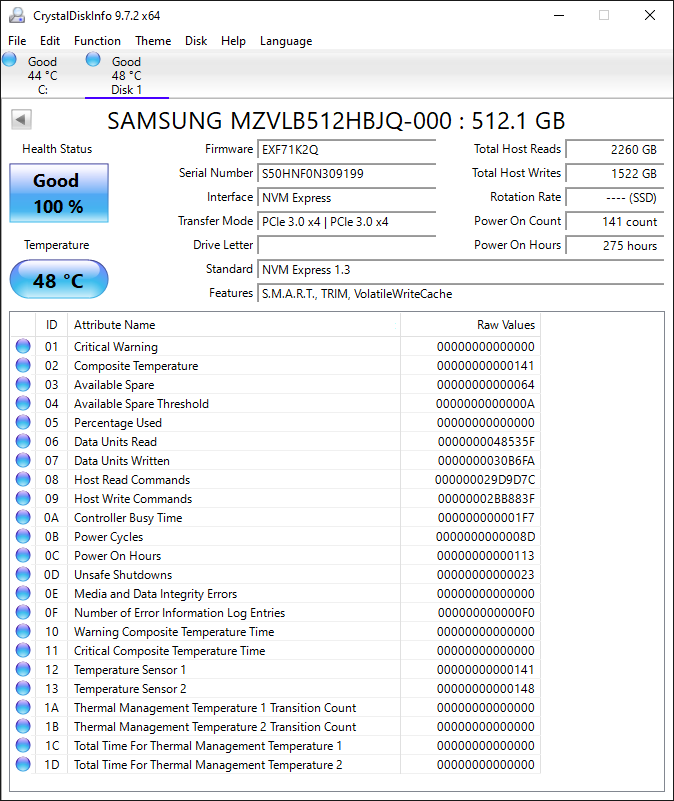
Lifetime Writes:1,522 GB. This drive is almost brand new in terms of wear.
Percentage Used:0%. This confirms that the internal NAND flash has not used any of its rated endurance yet.
Power On Hours:275 hours.
Technical Note:The “Number of Error Information Log Entries” is at 240 (F0 in hex). While the drive health is 100%, this count tracks minor communication retries. Since “Media and Data Integrity Errors” is 0, these logs likely represent minor interface hiccups rather than actual data loss or drive failure.
Temperature:48°C. This is a normal operating temperature
Try what @rsaeon suggested. Also
Try checking the drive in other system and see if it initializes.
Try the same once in an enclosure to see if there is any sucess .
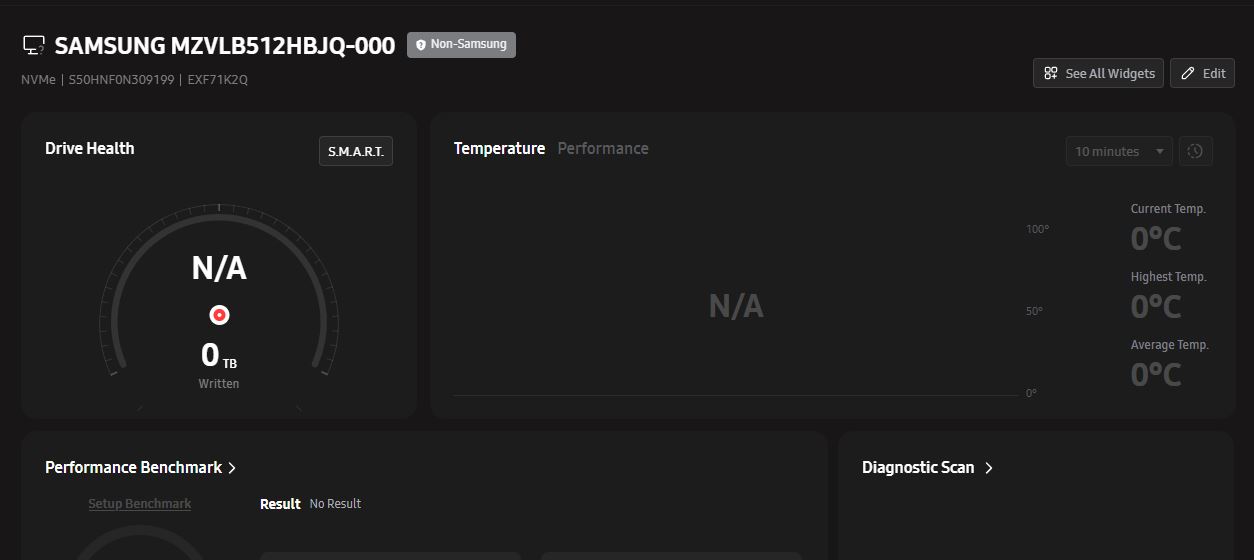
The drive is not recognised in samsung magician as its OEM.
Suggestions are post googling
Current Status: Your current firmware (EXF71K2Q) is an older version. Newer revisions, such as EXF7201Q or manufacturer-specific versions like 1530.5129, have been released to improve data management and prevent integrity issues.
The OEM Constraint: Because the PM981a is an OEM (Original Equipment Manufacturer) drive, Samsung Magician will not update its firmware. Updates for these drives are exclusively distributed by the manufacturer of the computer the drive came in (e.g., Lenovo, Dell, HP).
How to Update:
Identify your PC Brand: Check if your laptop or desktop is from a major brand like Lenovo, Dell, or HP.
Use Manufacturer Tools: * Lenovo: Use Lenovo Vantage or their NVMe Firmware Update Utility.
Dell: Use SupportAssist or search the Dell Support site for “PM981a Firmware.”
HP: Use HP Support Assistant.
Manual Search: If you built the PC yourself and bought the drive separately, you may have to search the support site of the laptop brand the drive was originally intended for (usually Lenovo or Dell).
If you know from which OEM laptop this is pulled or it came with, you can try the firmware update from the respective manufacturer to see if it helps, this is a long shot to try. But wrong firmware update can brick the drive.
Find Your Specific Update
Please check the brand of your laptop or desktop and use the corresponding link below:
Lenovo: Use the NVMe SSD Firmware Update Utility. This is a comprehensive tool that scans your drive and automatically installs the latest version (it currently supports dozens of Samsung OEM models).
Dell: Search for your Service Tag on the Dell Support Site. You are likely looking for version 1530.5629 or similar, which was released to “improve data management and prevent integrity issues”.
HP: HP is less consistent with SSD updates. Check your model’s driver page under “Storage”. If nothing is listed, HP typically expects you to use the HP Support Assistant to find it.
Further drill down by AI to find the specific firmware the coin toss is between Lenovo or Dell.
Where to find EXF7201Q
Since the PM981a is an OEM drive, finding a “one-click” installer can be tricky. This specific version is primarily distributed through two channels:
Lenovo NVMe Firmware Update Utility: This is the most reliable way to get this specific firmware. Lenovo’s utility includes firmware for many “generic” Samsung OEM drives, even if they aren’t in a Lenovo laptop.
How it works: You run the utility (fwwinsd.exe), and it will scan your drive. If it identifies your PM981a as compatible, it will offer the EXF7201Q (or equivalent) update.
Dell Support: Dell also provides a firmware package for the PM981a (often labeled as version 1530.5129 or 1530.5629). While the version number looks different, it is functionally equivalent to the EXF72xx series.
Download: You can find it on the Dell Support site by searching for “PM981a firmware”.
If nothing works and all options are exhausted try the above. Try Lenovo first i feel its more compatible as per whatever inputs generated. Else if you have confirmation if its already from Dell.
Disclaimer : Try the above at your own risk as it can brick your drive. Even post firmware update the issue may not get resolved. But it’s worth trying if nothing else works as a last resort once you have tried all formatting and testing options in different pc and nvme case , as there is no RMA option .
Never update an oem ssd firmware without expert opinion & by that I mean real experts who can hold a talk with professionals working in ssd manufacturing tech field & not your typical youtubers.
The error and the surface test results show that this drive has suffered a catastrophic hardware failure.
The AOMEI Information Code 45 specifically means the software cannot write the required initialization data (like the Partition Table) to the disk because of a physical I/O device error.
Analysis of the Damage
The “LBA 0” Failure: In your surface test, the red (damaged) blocks start at the very first sector. This is the boot sector. Since the computer cannot write to this specific spot, it cannot “initialize” or “format” the drive.
Bad Sector Count (56,448+): For an SSD, seeing this many bad sectors in the first 5% of a scan is a death sentence. Unlike traditional hard drives, SSDs usually hide bad sectors by “remapping” them to spare cells. If they are showing up as red blocks, the drive has likely exhausted its spare cells or the internal controller has failed.
Data Transfer Error Correlation: This matches the “Data Transfer Error” log you shared earlier. The drive is physically rejecting any command to write data.
Why is this happening?
There are three likely scenarios for this specific drive:
NAND Flash Exhaustion: The storage cells at the start of the drive are physically worn out or corrupted beyond the ability of the controller to fix them.
Firmware Lock: The drive’s controller has detected a fatal internal error and has locked itself into a permanent Read-Only mode to protect what data is left. In this state, “initialization” is impossible.
The Verdict
If this drive is connected directly to a motherboard and still shows these red blocks and Code 45, the drive is physically dead and cannot be repaired by software.
Recommendation:
Do not attempt further formatting or “low-level” wipes; they will likely fail and could cause the drive to stop being detected entirely.
If this is the Samsung PM981a check if it is still covered under the laptop’s manufacturer warranty.
Don’t bury, Saw couple of posts online where there are folks who buy these drives and refurbish them post repair. You just need to find the right one or just sell it to them to see what they can offer for the same as it may still fetch something.
This drive was not recognized, so I saw some video where it was suggested to run a heat gun on it. After doing that the drive was visible in bios and windows
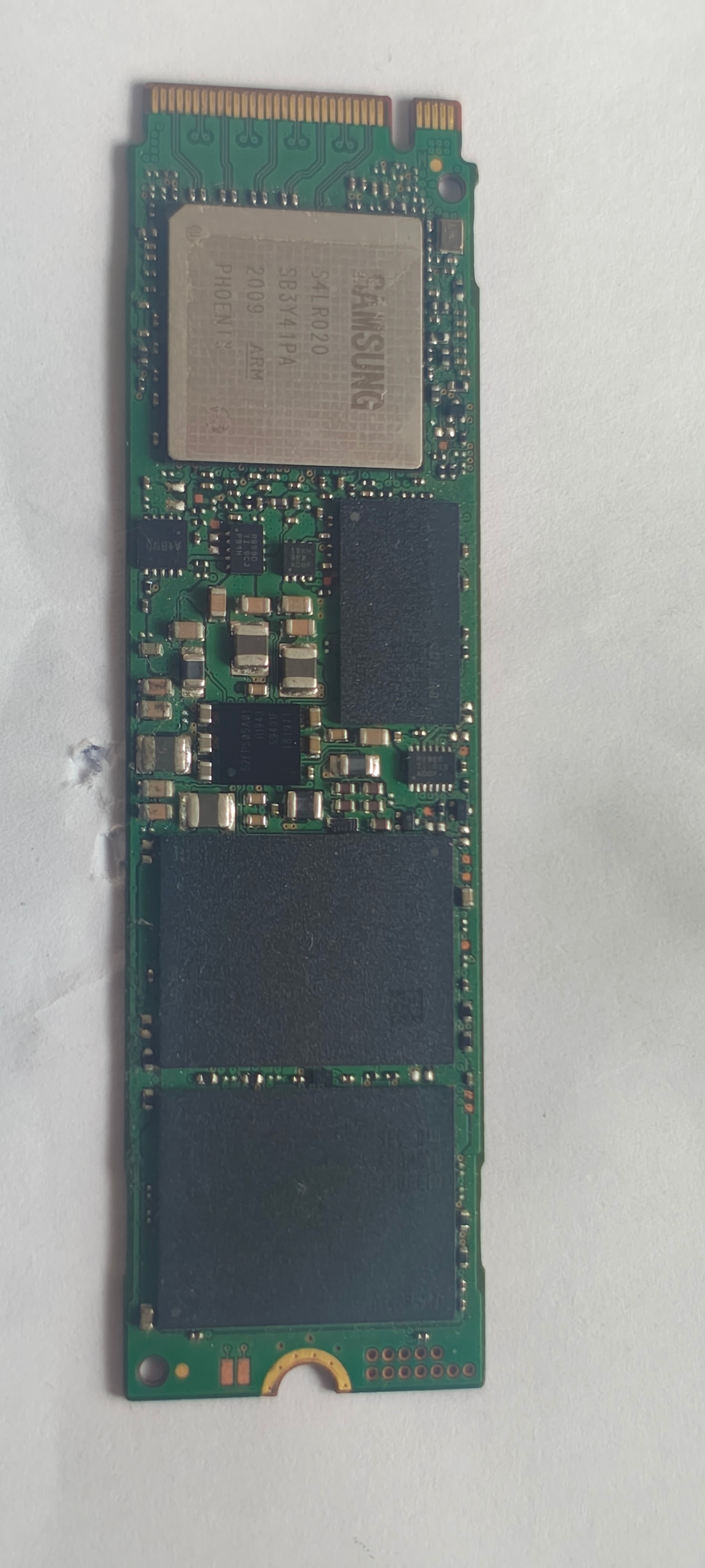

 so will try these solutions.